
| Pick | Host link | Downstream Thunderbolt | Other ports | Host charging | Best for |
|---|---|---|---|---|---|
| OWC Thunderbolt 5 Hub | Thunderbolt 5, 80Gbps | 3x Thunderbolt 5 | 1x USB-A 10Gbps | Up to 140W | 16-inch MacBook Pro charging |
| CalDigit Element 5 Hub | Thunderbolt 5, 80Gbps | 3x Thunderbolt 5 | 3x USB-A + 2x USB-C 10Gbps | 90W | Lots of USB accessories |
| OWC Thunderbolt Hub | Thunderbolt 4, 40Gbps | 3x Thunderbolt 4 | 1x USB-A 10Gbps | 60W | Lowest price |
| Plugable TBT4-HUB3C | Thunderbolt 4, 40Gbps | 3x Thunderbolt 4 | HDMI adapter included | 60W | HDMI-only monitors |
| Satechi Slim Hub | Thunderbolt 4, 40Gbps | 3x Thunderbolt 4 | 1x USB-A 10Gbps | 60W | Slim, tidy desks |
On this page
Our picks
- Best OverallOWC Thunderbolt 5 HubThree Thunderbolt 5 ports plus up to 140W of host charging, enough for a 16-inch MacBook$100-$200Check price on Amazon
- Best for More USB PortsCalDigit Element 5 Hub (Thunderbolt 5 / E5)Adds three USB-A and two USB-C 10Gbps ports next to three Thunderbolt 5 ports, so$200-$500Check price on Amazon
- Best Thunderbolt 4 ValueOWC Thunderbolt Hub (Thunderbolt 4)The cheapest way to add three Thunderbolt 4 ports and a USB-A port, with a long track$100-$200Check price on Amazon
- Best for an HDMI MonitorPlugable Thunderbolt 4 Hub (TBT4-HUB3C)The only pick that includes a USB-C to HDMI adapter, alongside three full Thunderbolt 4$100-$200Check price on Amazon
- Best Low-Profile PickSatechi Thunderbolt 4 Slim Hub (ST-T4SHM)About half an inch thick with a USB-A port, 60W charging, and its own power adapter and$100-$200Check price on Amazon
Find your match
Top picks at a glance
Best Overall
OWC Thunderbolt 5 Hub
$100-$200
Check price on Amazon
Best for More USB Ports
CalDigit Element 5 Hub (Thunderbolt 5 / E5)
$200-$500
Check price on Amazon
Best Thunderbolt 4 Value
OWC Thunderbolt Hub (Thunderbolt 4)
$100-$200
Check price on Amazon
Best for an HDMI Monitor
Plugable Thunderbolt 4 Hub (TBT4-HUB3C)
$100-$200
Check price on Amazon
Best Low-Profile Pick
Satechi Thunderbolt 4 Slim Hub (ST-T4SHM)
$100-$200
Check price on Amazon
What to look for
How we chose: We compared current Amazon US listings, maker spec sheets and manuals, and buyer reviews for desk Thunderbolt hubs in October 2026. We kept only powered hubs with three downstream Thunderbolt ports and ranked them on host link speed, laptop charging, extra USB ports, Mac display behavior, price, and buyer ratings. Travel USB4 hubs and full docks with Ethernet are covered in separate guides, so they are not repeated here.
We judged on: Real Thunderbolt 4 or Thunderbolt 5 host link with three downstream Thunderbolt ports · Host charging wattage stated by the maker, with enough headroom for a MacBook Pro · Clear Mac display behavior: each monitor on its own downstream port, within the Mac's chip limit · Compact powered body for a minimal desk, not a full dock port map · Currently sold on Amazon US with a solid buyer rating.
A Thunderbolt hub is a small powered box that turns one Thunderbolt port on your MacBook Pro into three more Thunderbolt ports, plus a USB port or two, while it charges the laptop over the same cable. That is the whole idea. There is no Ethernet jack, no SD slot, and usually no HDMI port. What you get instead is more of the port the MacBook Pro already has, at full Thunderbolt speed, so a fast SSD, a USB-C or Thunderbolt monitor, and a second drive can all hang off one cable at a tidy desk.
This guide is for MacBook Pro owners who need a few more Thunderbolt ports and one good monitor on a minimal desk. If you want Ethernet, a card reader, audio, and lots of USB-A in one box, buy a full dock instead: start with Best Thunderbolt 5 Docks Worth Buying in 2026 or The Best Thunderbolt 4 and USB4 Docks in 2026. If you need something for the laptop bag, a travel hub fits better, and Best Compact USB4 Hubs for Travel in 2026 covers that.
Hub vs Dock vs Travel Dongle
The three words get used loosely on store listings, so here is the plain version.
A travel dongle is a bus powered USB-C adapter with a built-in cable, usually HDMI, a couple of USB ports, and charging passthrough. It is cheap and pocketable, but most run at 10Gbps and give you no extra Thunderbolt ports.
A Thunderbolt hub has its own power supply, one host port, and three downstream Thunderbolt ports. Each downstream port carries full Thunderbolt data, video for a USB-C or Thunderbolt monitor, and power for bus powered drives. It is the right tool when the problem is "I ran out of Thunderbolt ports," not "I need every legacy port."
A full dock adds the extras: Ethernet, card readers, audio, a pile of USB-A, and often a dedicated DisplayPort or HDMI output. It costs more and takes more desk space. For a deeper side by side, read USB-C Hub vs. Docking Station: Which Do You Actually Need?.
What to Look For
Thunderbolt 5 or Thunderbolt 4. Thunderbolt 5 links run at 80Gbps each way, with up to 120Gbps toward displays when a high-refresh monitor needs it. Thunderbolt 4 runs at 40Gbps. MacBook Pro models with M4 Pro, M4 Max, or later Pro and Max chips have Thunderbolt 5 ports. The base-chip 14-inch models and older MacBook Pros have Thunderbolt 4 or Thunderbolt 3. A Thunderbolt 5 hub works fine on those, it just runs at 40Gbps. If your Mac has Thunderbolt 4, a Thunderbolt 4 hub saves money and gives up little. See Thunderbolt and USB4 for the background.
How displays work through a hub. None of these hubs has a built-in HDMI or DisplayPort output. You plug a USB-C or Thunderbolt monitor straight into a downstream port, or use a USB-C to DisplayPort or USB-C to HDMI cable. The hub passes video through, but it cannot raise the number of screens your Mac supports. The Mac display box on this page lists the external display limit for every Apple chip, and Pro and Max MacBook Pros allow more screens than the base-chip models. macOS has no MST. An MST dock does not extend two independent displays on a Mac. A Thunderbolt hub sends each screen down its own port as its own stream, which is why it behaves better on a Mac than a budget dual HDMI dongle. On a 40Gbps Thunderbolt 4 link, one 6K panel or a pair of 4K60 panels is the realistic ceiling. The DisplayPort page explains the signal side.
Host charging wattage. The hub charges the MacBook Pro through the host cable. A 14-inch MacBook Pro is comfortable on 60W to 90W for normal work, though it will charge slowly under heavy load at 60W. A 16-inch MacBook Pro ships with a 140W charger, so a 60W hub keeps it topped up at a desk but may lose ground during long exports. The USB-PD page covers how the hub and laptop agree on wattage.
Daisy-chaining. Each downstream Thunderbolt port is the start of its own chain. Thunderbolt allows up to six devices per chain, so a drive enclosure with a passthrough port can feed another drive or a monitor. Unplugging one chain does not disconnect the others.
Cables matter. Use the included cable for the host link, and a certified Thunderbolt cable for anything over a meter. Best Thunderbolt 4 and USB4 Cables in 2026 lists ones that hold full speed.
Best Overall: OWC Thunderbolt 5 Hub
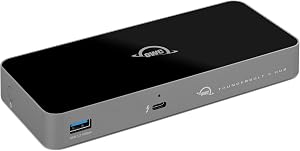
The OWC Thunderbolt 5 Hub is the best fit for most MacBook Pro desks because it pairs three downstream Thunderbolt 5 ports with the strongest laptop charging here. The host port delivers up to 140W, enough to fast charge a 16-inch MacBook Pro. OWC notes that host power can drop toward 100W when the downstream ports are also powering devices. There is also one 10Gbps USB-A port at the front for a flash drive or keyboard receiver, a fanless aluminum case, and a 0.8 meter Thunderbolt 5 cable in the box with a 180W power supply.
✓ Pros
- ✓ Up to 140W host charging, enough for a 16-inch MacBook Pro
- ✓ Three downstream Thunderbolt 5 ports at 80Gbps on a Thunderbolt 5 Mac
- ✓ Fanless, silent aluminum enclosure
- ✓ Costs less than most Thunderbolt 5 docks
✕ Cons
- ✕ Only one USB-A port and no extra USB-C data ports
- ✕ No Ethernet, card reader, or built-in video output
- ✕ Thunderbolt 5 speed needs a Pro or Max MacBook Pro from late 2024 onward
Host link: Thunderbolt 5, 80Gbps. Downstream: three Thunderbolt 5 ports and one 10Gbps USB-A port. Host charging: up to 140W. Display support on Mac: each monitor takes its own Thunderbolt port, up to your Mac's limit. Price tier: mid, roughly $150 to $200. Who it is for: 14-inch and 16-inch MacBook Pro owners who want full charging and fast storage from one cable.
Best for More USB Ports: CalDigit Element 5 Hub
The CalDigit Element 5 Hub trades charging power for a bigger port map. Next to three downstream Thunderbolt 5 ports, you get three 10Gbps USB-A ports and two 10Gbps USB-C data ports, so keyboards, webcams, and older drives do not eat a Thunderbolt port. All four Thunderbolt ports support fast PCIe tunneling for Thunderbolt SSDs. Host charging is 90W from a 180W power supply, and the hub can charge phones even when the laptop is unplugged. For the full rundown, see the CalDigit Element 5 Hub Review.
✓ Pros
- ✓ Five extra 10Gbps USB ports next to three Thunderbolt 5 ports
- ✓ Highest buyer rating in this guide
- ✓ Offline charging for phones and accessories
- ✓ Compact powered chassis with a 0.8 meter Thunderbolt 5 cable
✕ Cons
- ✕ 90W host charging is below a 16-inch MacBook Pro's 140W fast charge
- ✕ Most expensive pick here, roughly $200 to $250
- ✕ Stock can run low
Host link: Thunderbolt 5, 80Gbps. Downstream: three Thunderbolt 5, three USB-A 10Gbps, two USB-C 10Gbps. Host charging: 90W. Display support on Mac: CalDigit lists two 6K or 8K at 60Hz, or two 4K at 240Hz, on Macs that support that many screens. Price tier: premium. Who it is for: 14-inch MacBook Pro owners with lots of USB accessories.
Best Thunderbolt 4 Value: OWC Thunderbolt Hub
The OWC Thunderbolt Hub is the original version of the top pick, built on Thunderbolt 4. It has three downstream Thunderbolt 4 ports at 40Gbps, one 10Gbps USB-A port, up to 60W of host charging, and an adjustable status light you can dim or turn off. OWC rates it for one 8K display or two 4K displays, depending on the host. It also has the most buyer reviews of any pick here.
✓ Pros
- ✓ Lowest price in this guide for three Thunderbolt ports
- ✓ Includes a 10Gbps USB-A port
- ✓ Long track record with hundreds of buyer reviews
- ✓ Dimmable status light for a dark desk
✕ Cons
- ✕ 60W host charging is slow for a busy 16-inch MacBook Pro
- ✕ Thunderbolt 4 speed, half of a Thunderbolt 5 link
- ✕ No built-in video output
Host link: Thunderbolt 4, 40Gbps. Downstream: three Thunderbolt 4 ports and one USB-A 10Gbps. Host charging: 60W. Display support on Mac: one high-resolution monitor or a pair of 4K monitors, up to your Mac's limit. Price tier: value, roughly $100 to $150. Who it is for: base-chip 14-inch MacBook Pro owners and anyone on Thunderbolt 4.
Best for an HDMI Monitor: Plugable Thunderbolt 4 Hub
The Plugable Thunderbolt 4 Hub (TBT4-HUB3C) is the pick when your monitor only has HDMI, because Plugable puts a USB-C to HDMI 2.0 adapter in the box. The host port is on the front and the three downstream Thunderbolt 4 ports are on the back, each with 40Gbps data and 15W for bus powered gear. Host charging is 60W. Plugable is clear about Mac support and lists the base M3 lid rule on its listing. There are no USB-A ports, so plan on a small USB-C to USB-A adapter for older accessories.
✓ Pros
- ✓ USB-C to HDMI 2.0 adapter included
- ✓ Three Thunderbolt 4 ports with 15W each for bus powered drives
- ✓ Front host port keeps the cable run short
- ✓ Clear Mac compatibility notes from the maker
✕ Cons
- ✕ No USB-A ports at all
- ✕ 60W host charging
- ✕ Costs more than the OWC Thunderbolt 4 hub
Host link: Thunderbolt 4, 40Gbps. Downstream: three Thunderbolt 4 ports. Host charging: 60W. Display support on Mac: up to two 4K60 monitors or one 6K on Apple silicon, up to your Mac's limit. Size: 4.7 x 2.9 x 0.7 inches. Price tier: mid. Who it is for: MacBook Pro owners with an HDMI-only monitor who want Thunderbolt ports for drives.
Best Low-Profile Pick: Satechi Thunderbolt 4 Slim Hub
The Satechi Thunderbolt 4 Slim Hub is about half an inch thick and finished in space gray, so it sits flat behind a MacBook Pro on a stand without looking like a box of cables. It has three downstream Thunderbolt 4 ports at 40Gbps with 15W each, one 10Gbps USB-A port, and 60W host charging. Satechi includes a 100W power adapter and a 2.6 foot Thunderbolt 4 cable. Satechi lists one 8K30 or two 4K60 displays, or one 6K display on a Mac, always within your Mac's own screen limit.
✓ Pros
- ✓ Slimmest body here at about 0.5 inches
- ✓ Includes a 10Gbps USB-A port
- ✓ Power adapter and Thunderbolt 4 cable in the box
- ✓ Matches a space gray MacBook Pro
✕ Cons
- ✕ 60W host charging
- ✕ Fewer buyer reviews than the OWC and Plugable hubs
- ✕ Thunderbolt 4 only
Host link: Thunderbolt 4, 40Gbps. Downstream: three Thunderbolt 4 ports and one USB-A 10Gbps. Host charging: 60W. Size: 4.88 x 2.91 x 0.51 inches, about 7 ounces. Price tier: mid. Who it is for: minimal desks where the hub stays in view.
Comparison Table
How to Choose
Match the port. On a Thunderbolt 5 MacBook Pro, the OWC Thunderbolt 5 Hub or the CalDigit Element 5 Hub gets you full speed. On Thunderbolt 4, the three Thunderbolt 4 hubs do the same job for less.
Match the charger. A 16-inch MacBook Pro running hard wants 140W, and only the OWC Thunderbolt 5 Hub gets there. A 14-inch model is fine on 60W to 90W.
Count USB accessories and check the monitor. Lots of USB-A gear points to the Element 5 Hub. An HDMI-only monitor points to the Plugable, the only pick with an adapter in the box. Fast external storage is the other big reason to buy a hub, and Best USB4 M.2 NVMe Enclosures Under $100 in 2026 pairs well with any pick here.
The Bottom Line
For most MacBook Pro owners, the OWC Thunderbolt 5 Hub is the one to buy: three fast Thunderbolt ports and enough charging for the biggest MacBook Pro from one cable. Pick the CalDigit Element 5 Hub if you need more USB ports, the OWC Thunderbolt Hub to save money on a Thunderbolt 4 Mac, the Plugable Thunderbolt 4 Hub for an HDMI monitor, and the Satechi Thunderbolt 4 Slim Hub for the lowest profile.
Building out the rest of the desk? Browse the USB-C, docks, and charging hub, and see Best USB-C Hubs in 2026 (Portable, Not Full Docks) if you only need basic ports.
Frequently asked questions
- What is the difference between a Thunderbolt hub and a Thunderbolt dock?
- A Thunderbolt hub adds more Thunderbolt ports (usually three) plus a USB port or two, and charges the laptop. A dock adds those plus Ethernet, card readers, audio, many USB-A ports, and often a dedicated video output. Buy a hub when you mainly need more Thunderbolt ports for drives and a USB-C monitor.
- Can a Thunderbolt hub add more monitors to my MacBook Pro?
- No. A hub passes video from the Mac to monitors plugged into its Thunderbolt ports, but the number of extended screens is set by the Mac's chip. Each monitor uses its own downstream port, so the hub works within that limit rather than raising it.
- Is a Thunderbolt 5 hub worth it on a Thunderbolt 4 MacBook Pro?
- Usually not for speed, since the link drops to 40Gbps. It can still make sense for the OWC Thunderbolt 5 Hub's 140W charging, or if you plan to move to a Thunderbolt 5 MacBook Pro soon. Otherwise a Thunderbolt 4 hub does the same job for less.
- Will a 60W hub charge a 16-inch MacBook Pro?
- It will keep it charged during light work, but a 16-inch MacBook Pro ships with a 140W charger and can drain slowly on 60W during heavy exports or gaming. The OWC Thunderbolt 5 Hub is the pick here that can deliver up to 140W.
- How many devices can I daisy-chain from a Thunderbolt hub?
- Each downstream Thunderbolt port starts its own chain, and Thunderbolt allows up to six devices per chain. Unplugging one chain does not affect the others, which makes hubs handy for several drive enclosures.