
| Dock | Price band | Dual-display ceiling | Laptop charging | Ethernet | Native video | Ports |
|---|---|---|---|---|---|---|
| Plugable TBT4-UD5 | $150 to $200 | 2x 4K@60Hz HDMI | 96W certified | 1 Gbps | 2x HDMI | 13 |
| OWC 11-Port | $200 to $250 | 2x 4K / 2x 5K@60Hz via TB4 | 96W | 1 Gbps | TB4 only | 11 |
| StarTech 132N | $250 to $300 | 2x 4K@60Hz Mac, up to 4x 4K Windows | 98W | 2.5 Gbps | 2x HDMI + 2x DP | 16 |
| CalDigit TS4 | $300 to $400 | 2x 6K@60Hz | 98W | 2.5 Gbps | DisplayPort + TB4 | 18 |
On this page
Our picks
- Best OverallCalDigit TS4 Thunderbolt 4 Dock18 ports, 98W charging, 2.5GbE, and dual 6K@60Hz at roughly $300 to $400, with 1,741$200-$500Check price on Amazon
- Best ValuePlugable Thunderbolt 4 Dock (TBT4-UD5)Roughly $150 to $200, Intel Evo certified, dual HDMI, 96W certified PD, and 2,000-plus$100-$200Check price on Amazon
- Best CompactOWC 11-Port Thunderbolt Dock96W in a 400g aluminum brick with three downstream Thunderbolt 4 ports, roughly $200 to$200-$500Check price on Amazon
- Best Mixed Video PortsStarTech Thunderbolt 4 Dock (132N-TB4USB4DOCK)Thunderbolt certified, 98W, 2x HDMI plus 2x DP, 2.5GbE, roughly $250 to $300$200-$500Check price on Amazon
Find your match
Top picks at a glance

Best Overall
CalDigit TS4 Thunderbolt 4 Dock
$200-$500
Check price on Amazon
Best Value
Plugable Thunderbolt 4 Dock (TBT4-UD5)
$100-$200
Check price on Amazon
Best Compact
OWC 11-Port Thunderbolt Dock
$200-$500
Check price on Amazon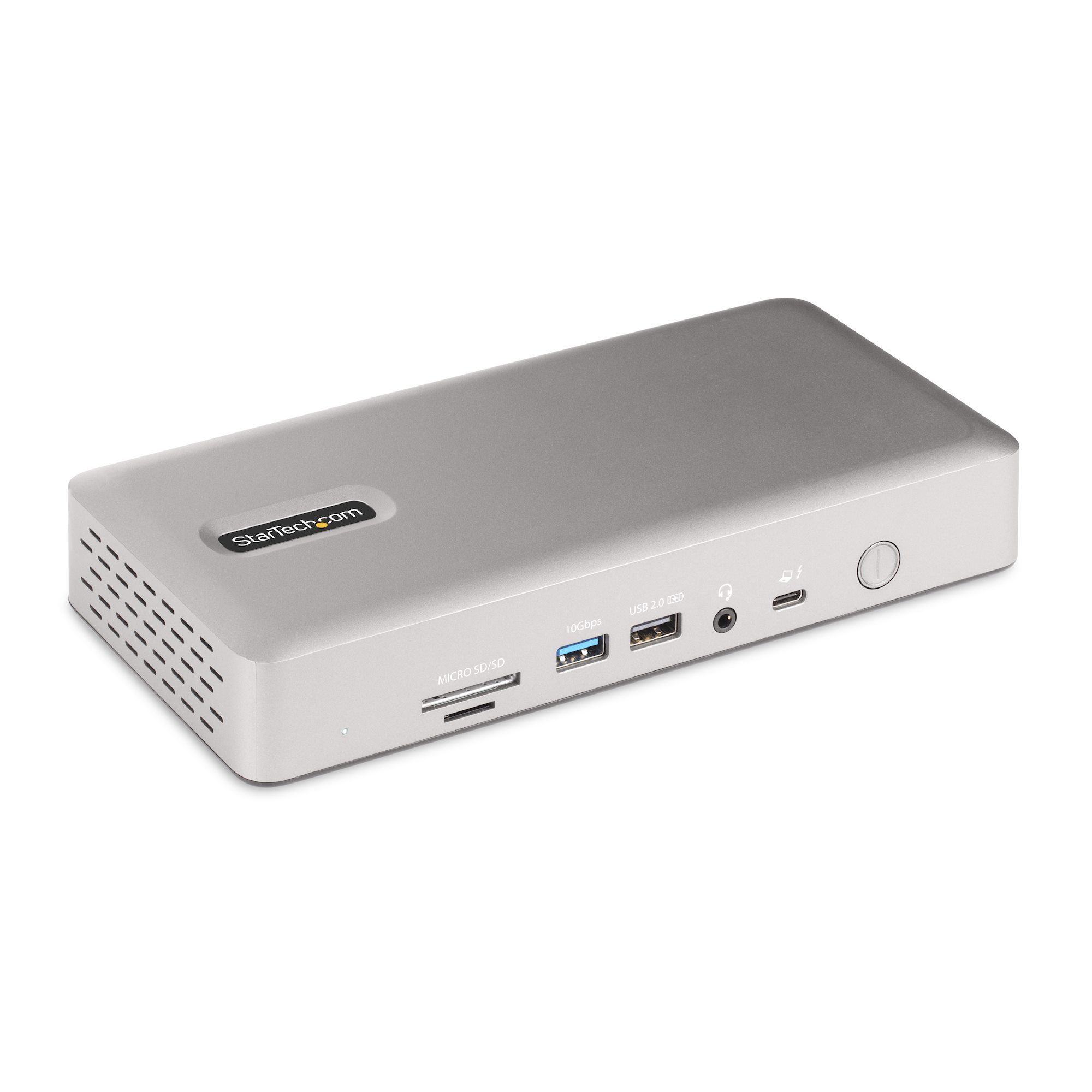
Best Mixed Video Ports
StarTech Thunderbolt 4 Dock (132N-TB4USB4DOCK)
$200-$500
Check price on Amazon
What to look for
How we chose: We compared current US Amazon listings and maker spec sheets for Thunderbolt 4 and USB4 40Gbps docks that advertise dual 4K and 90W or more laptop charging. Only docks that were in stock with a matching product title made the list. Ratings and review counts come from those listings. The main picks exclude USB-C hubs, DisplayLink docks, and anything under 90W; a separate section covers simpler USB-C docks for desks that do not need Thunderbolt.
We judged on: Intel-certified Thunderbolt 4 or USB4 40Gbps host connection · Native dual 4K at 60Hz without DisplayLink · 90W or more Power Delivery to the laptop · In stock at Amazon US with a matching product title · Honest Mac versus Windows display limits, including base M-series caps.
A cheap USB-C hub can look like a Thunderbolt dock until you plug in two 4K monitors and they refresh at 30Hz, or your laptop slowly drains under load. This guide is only for docks that clear a hard bar: Intel-certified Thunderbolt 4 or USB4 at 40Gbps, dual 4K at 60Hz, and 90W or more of Power Delivery to the laptop. If you just need two everyday screens and Ethernet for under $80, skip to the USB-C docks section further down. The main picks here are the 40Gbps upgrade. Need even more bandwidth than Thunderbolt 4's 40Gbps? See Best Thunderbolt 5 Docks Worth Buying in 2026 instead.
What to Look For
The spec that matters is 40Gbps with a certification, not a port count printed on the box. Thunderbolt 4 is Intel's stricter box around USB-C: 40Gbps, dual 4K or single 8K, and predictable charging. USB4 can also be 40Gbps, but the extras (how video is tunneled, how much power the host actually gets) vary by laptop. This guide treats "Intel-certified Thunderbolt 4" or a clearly labeled USB4 40Gbps dock as the entry ticket, then requires dual 4K@60Hz and 90W or more to the laptop.
Here is the rest of the filter:
- Dual 4K at 60Hz, native. Not MST-split 4K@30Hz, and not a driver-based DisplayLink path. DisplayLink is the right workaround when a Mac will not drive two independent displays from a plain USB-C dock. It is not what this list is for.
- 90W or more of USB-PD to the host. 90W covers most ultrabooks. A 16-inch workstation still wants closer to 96W to 98W, and even then heavy CPU plus GPU work can outrun the dock. Read the "to host" number, not the brick's wattage.
- Your laptop's display ceiling. A Thunderbolt 4 dock does not add GPU outputs your chip does not have. Base M1 and M2 MacBooks: one external display. Base M3 MacBooks: two, but only with the lid closed. Base M4 and M5, plus M-series Pro chips: two or more. Max chips: up to four. Windows laptops with Thunderbolt 4 or USB4 40Gbps can usually do two native 4K60, and some docks here add a third or fourth on recent Intel hosts.
- The ports you actually plug in. Dedicated HDMI versus DisplayPort versus downstream Thunderbolt changes which monitors need adapters. Gigabit Ethernet is fine for calls. 2.5GbE is the one worth paying for if you copy large files to a NAS.
If you are still deciding whether you need a dock at all, the USB-C hub versus docking station explainer and what a docking station actually does are the shorter reads. For the cable that should sit between laptop and dock, use a certified Thunderbolt 4 or USB4 40Gbps lead, not a random 100W USB-C cable.
CalDigit TS4: Best Overall
The CalDigit TS4 is the dock the rest of this list is compromising toward: 40Gbps Thunderbolt 4, 98W charging, 18 ports, and dual 6K@60Hz (or a single 8K@30Hz) for roughly $300 to $400. It holds 4.2 stars across 1,741 ratings, with 1,000-plus bought in the past month. Reviewers who moved here from cheaper hubs keep repeating the same verdict: it just stays connected.
You get three Thunderbolt 4 ports, three USB-C and five USB-A all at 10Gbps, DisplayPort 1.4, UHS-II SD and microSD, three audio jacks, and 2.5GbE. The certified 0.8m Thunderbolt 4 cable and the power brick are in the box. On a MacBook Pro with an M-series Pro or Max chip, this is the only pick here that can push dual 6K@60Hz without a converter dongle on the DisplayPort side.
The recurring complaint is the 2.5GbE port dropping for some buyers, which matters if you bought the dock partly for wired networking. A smaller cluster reports units that stop delivering power, and 98W is below the 140W fast-charge ceiling on a 16-inch MacBook Pro, so heavy parallel CPU and GPU work can still drain the battery slowly. It also costs roughly twice as much as the Plugable. If you do not need 18 ports and 2.5GbE, spend less.
✓ Pros
- ✓ 40Gbps upstream with dual 6K@60Hz or single 8K@30Hz
- ✓ 18 ports, including 3x Thunderbolt 4 and USB at a full 10Gbps
- ✓ 98W charging over the included certified Thunderbolt 4 cable
- ✓ 2.5GbE, the fastest wired networking in this guide
- ✓ 4.2 stars across 1,741 ratings, 1,000-plus bought last month
✕ Cons
- ✕ Roughly $300 to $400, about twice the Plugable
- ✕ Some buyers report the 2.5GbE port disconnecting
- ✕ A minority report units that stop working or stop delivering power
- ✕ 98W will not fast-charge a 16-inch MacBook Pro at its 140W ceiling
Plugable TBT4-UD5: Best Value
The Plugable TBT4-UD5 is the dock to buy first if you need dual 4K@60Hz and 90W-plus charging without paying CalDigit money. Roughly $150 to $200 (list $200 to $250), Intel Evo certified, 96W certified Power Delivery (100W peak), two HDMI 2.0 outputs, and 13 ports. It is at 4.2 stars across 559 ratings, with 2,000-plus bought in the past month, and Wirecutter named it the best Thunderbolt dock in 2025.
Two HDMI ports mean most office monitors plug in with no adapter. You also get a downstream Thunderbolt 4 port (40Gbps, or a single 8K display), one USB-C 10Gbps, two USB-A 10Gbps, two USB-A 5Gbps, Gigabit Ethernet, SD and microSD, and a combo audio jack. The 135W brick is included. Buyers on MacBook Pro 16-inch machines repeatedly say it extends two displays instead of mirroring them, which is the exact failure mode of cheaper USB-C hubs.
The named complaint cluster is reliability after months of use: some units stop connecting within a year, and a slice of reviews describe dropped monitors or flaky USB. The host Thunderbolt cable lands on the front of the dock, which several owners dislike for cable routing. Ethernet is Gigabit, not 2.5GbE. If your income depends on the dock never blinking, the TS4's review volume is the safer bet. For everyone else at this bar, this is the pick.
✓ Pros
- ✓ Dual HDMI 4K@60Hz with no adapters, or one 8K on the downstream Thunderbolt port
- ✓ 96W certified charging (100W peak) from the included 135W brick
- ✓ Roughly $150 to $200, Intel Evo certified, 2,000-plus bought last month
- ✓ 13 ports including downstream Thunderbolt 4, SD and microSD, and Gigabit Ethernet
✕ Cons
- ✕ Some buyers report the dock stopping or dropping connections within a year
- ✕ Host cable is on the front, which makes tidy routing harder
- ✕ HDMI only for native video, no DisplayPort
- ✕ Gigabit Ethernet, not 2.5GbE
OWC 11-Port Thunderbolt Dock: Best Compact
Buy the OWC 11-Port when you want a small aluminum Thunderbolt 4 brick with three downstream Thunderbolt ports and 96W charging, and you do not mind adapters for HDMI monitors. Roughly $200 to $250, 4.1 stars across 720 ratings, 200-plus bought last month. OWC rates it for a single 8K or dual 4K / dual 5K@60Hz through those downstream Thunderbolt 4 ports.
The layout is 11 ports: three downstream Thunderbolt 4, three USB-A 10Gbps, one USB-A 2.0, Gigabit Ethernet, UHS-II SD, and a 3.5mm combo jack. There is no native HDMI or DisplayPort. USB-C monitors plug straight in. HDMI or DP monitors need a USB-C adapter, and that extra hop is the first thing to budget for. The chassis is compact (about 7.3 x 19.8 x 2.6 cm, 400g), driverless on Mac and Windows, and the certified Thunderbolt 4 cable is included.
The most specific complaint is Ethernet dying after a while, which hurts because wired networking is a common reason to buy this dock. USB-A ports are only 4.5W, so power-hungry accessories belong on a Thunderbolt port. And because video rides the Thunderbolt outputs, a desk full of HDMI-only office monitors will cost you two adapters the Plugable does not need. If your displays are already USB-C or you already own adapters, the smaller footprint is the point.
✓ Pros
- ✓ 96W charging in a compact aluminum shell
- ✓ Three downstream Thunderbolt 4 ports for drives, eGPUs, or USB-C displays
- ✓ Dual 4K or dual 5K@60Hz (host dependent), or a single 8K
- ✓ Driverless on Mac and Windows, certified cable in the box
- ✓ Roughly $200 to $250, well under the TS4
✕ Cons
- ✕ No native HDMI or DisplayPort, so HDMI monitors need adapters
- ✕ Gigabit Ethernet only, and some buyers report the jack failing
- ✕ USB-A ports supply just 4.5W
- ✕ Front host port can make the cable run look messy
StarTech 132N-TB4USB4DOCK: Best Mixed HDMI and DisplayPort
The StarTech 132N is the pick when your monitors are a mix of HDMI and DisplayPort, or you want four 4K screens on a recent Windows laptop. Roughly $250 to $300, Thunderbolt certified, 98W Power Delivery from a 180W brick, 16 ports, 4.4 stars across 46 ratings, 50-plus bought last month. Dual HDMI 2.1 plus dual DisplayPort 1.4 is the layout the other three docks do not offer.
On Windows with Intel 12th-gen or newer and DisplayPort 1.4 with DSC, StarTech rates it for four 4K@60Hz displays. Older Windows hosts drop to triple or dual. On Mac, dual extended 4K@60Hz works on M3 and M4 Air and Pro (M3 needs clamshell) and on M1/M2 Pro or Max. Base M1 and M2 MacBooks still get one external display. It is also USB4-friendly, so a 40Gbps USB4 Windows or Snapdragon laptop is in scope, not only Thunderbolt hosts.
The review set is thin (46 ratings), so treat the 4.4 average as early. A few buyers call it overpriced on macOS, where you will not see the quad-display headline. There is no SD slot, only microSD, and the extra DisplayPort and HDMI ports do not help if your host cannot drive that many screens. For a mixed-fleet Windows desk that needs HDMI and DP without dongles, this is the one to shortlist next to the Plugable.
✓ Pros
- ✓ 2x HDMI 2.1 and 2x DisplayPort 1.4, no adapters for mixed monitor desks
- ✓ Quad 4K@60Hz on recent Windows hosts, dual 4K@60Hz on supported Macs
- ✓ 98W charging, 2.5GbE, 7-port USB hub, Thunderbolt certified
- ✓ Works on Thunderbolt 4, USB4, Intel, AMD, and Snapdragon hosts
✕ Cons
- ✕ Only 46 ratings, so long-term reliability is less proven than the TS4 or Plugable
- ✕ Some buyers call the price high if they only need two Mac displays
- ✕ microSD only, no full-size SD slot
- ✕ Quad-display mode needs a recent Windows laptop with DP 1.4 and DSC
How the Four Compare
Every dock here clears 40Gbps, dual 4K, and 90W-plus charging. The differences are ports, Ethernet, and how video leaves the box.
| Attribute | CalDigit TS4 Thunderbolt 4 Dock | Plugable Thunderbolt 4 Dock (TBT4-UD5) | OWC 11-Port Thunderbolt Dock | StarTech Thunderbolt 4 Dock (132N-TB4USB4DOCK) |
|---|---|---|---|---|
| Rating | 4.1 | 4.3 | 4.2 | 4.4 |
| Price | $200-$500 | $100-$200 | $200-$500 | $200-$500 |
| Connection | Thunderbolt 4 (40Gb/s) | Thunderbolt 4 (40Gb/s) | Thunderbolt 4 (40Gb/s) | Not listed |
| Power Delivery to laptop | 98W | 100W (96W certified) | 96W | 98W |
| Total ports | 18 | Not listed | 11 | 16 |
| Max video output | Dual 4K 60Hz / 8K 30Hz / dual 6K 60Hz (via DisplayPort + TB4) | Not listed | Single 8K or dual 4K / dual 5K 60Hz (via TB4 downstream) | Dual 4K@60Hz Mac, up to quad 4K@60Hz Windows |
| Ethernet | 2.5GbE | Gigabit (1GbE) | Gigabit (1GbE) | 2.5GbE |
| Cable | 0.8m TB4 certified, included | Not listed | Not listed | Not listed |
| Display outputs | Not listed | 2x HDMI 2.0 (dual 4K 60Hz or single 8K) | Not listed | Not listed |
| USB | Not listed | 1x downstream TB4, 1x USB-C, 4x USB-A | 3x Thunderbolt 4 downstream, 4x USB | Not listed |
| Card reader | Not listed | SD + microSD | Not listed | Not listed |
| Host connection | Not listed | Not listed | Not listed | Thunderbolt 4 / USB4 40Gbps |
| Power adapter | Not listed | Not listed | Not listed | 180W included |
| Buy | Check price on Amazon | Check price on Amazon | Check price on Amazon | Check price on Amazon |
Not on Thunderbolt? USB-C Docks for Simpler Home Office Desks
Everything above is a 40Gbps Thunderbolt or USB4 dock. If you just need two everyday screens, Ethernet, and charging from a Windows laptop or a basic USB-C port, these four USB-C docks do the job for much less. The tradeoffs are display ceilings (4K@30Hz or 2K@60Hz on dual screens) and mirrored externals on macOS.
Anker 8-in-1 USB-C Dock: Best Budget Dock for Two Screens
For a Windows laptop and two everyday monitors, the Anker 8-in-1 does the entire one-cable job for $30 to $50. It is the category best seller for a reason: dual HDMI, Gigabit Ethernet, two USB-A ports, and SD/microSD readers, with up to 85W of pass-through charging keeping the laptop topped up over the same cable. Over 7,000 people bought one in the past month, and across 6,528 ratings it holds 4.3 stars. Buyers repeatedly describe the experience a home office hub should deliver: plug it in on Windows 10 or 11, and everything just appears.
Know the two compromises before you click. First, dual-monitor output drops to 4K@30Hz per screen (a single monitor gets full 4K@60Hz), which is fine for documents and email and noticeably laggy for fast scrolling. Second, on macOS both external monitors mirror the same image. The most-flagged theme in its reviews is reliability, with a minority reporting monitors dropping connection or the laptop not charging; at this price and volume that minority is small, but if your income depends on a rock-solid triple-screen trading setup, spend more on one of the Thunderbolt docks above.
✓ Pros
- ✓ Cheapest path to two extra screens, and the street price usually sits well under list
- ✓ 85W pass-through charging over the single cable
- ✓ Plug-and-play on Windows 10/11 and ChromeOS; buyers consistently call setup easy
- ✓ Compact footprint that hides behind a monitor stand
✕ Cons
- ✕ Dual monitors cap at 4K@30Hz each, and it runs warm under sustained load
- ✕ macOS mirrors both external displays; extended desktops are Windows-only
- ✕ No charger in the box; you need your own 100W PD wall charger for full charging
- ✕ A minority of buyers report dropped monitor connections or charging hiccups
Anker 565 11-in-1: Best Budget Pick for Extended Dual Monitors
The Anker 565 is the $50 to $75 answer to the 8-in-1's biggest weakness: it drives two genuinely different screens. Instead of dual HDMI sharing one signal, it pairs HDMI with a real DisplayPort output, so a Windows laptop with DP 1.4 runs two extended desktops at 2K@60Hz each. It also brings fast data that is rare at this price: one 10 Gbps USB-C and one 10 Gbps USB-A port, plus SD/microSD slots at 104 MB/s, which matters if you offload camera cards or clone backup drives at your desk. Eleven ports total, including Ethernet and a 3.5mm jack, with 85W pass-through charging.
The honest ceiling: dual extended output tops out at 2K@60Hz per monitor (1080p on older DP 1.2 laptops), so dual 4K@60Hz is off the table here too. The named complaint cluster in its 2,564 ratings is display flickering, with a couple dozen buyers describing screens that intermittently go dark, and some units reportedly die around the 6-month mark. If you keep the receipt and register the warranty, that risk is manageable; if intermittent flicker during a client call would be a firing offense, look at the CalDigit TS4 above.
✓ Pros
- ✓ HDMI plus DisplayPort gives two truly extended screens on Windows
- ✓ 10 Gbps USB-C and USB-A ports, unusual at this price
- ✓ 11 ports including Ethernet, SD/microSD at 104 MB/s, and an AUX jack
- ✓ $50 to $75 street price, often a little under list
✕ Cons
- ✕ Dual extended video maxes out at 2K@60Hz per monitor, not 4K
- ✕ A small cluster of buyers report intermittent display flickering
- ✕ Some units reportedly fail around six months
- ✕ Charger not included, and macOS still mirrors both external displays
MOKiN 17-in-1: Best for Three Monitors on a Budget
Nothing else at $75 to $100 hangs three independent 4K@60Hz displays, which makes the MOKiN 17-in-1 the value outlier among the USB-C docks. You get 3 HDMI and 2 DisplayPort outputs (any three at once, mix and match), 17 ports total including two 10 Gbps USB ports, Gigabit Ethernet, 104 MB/s card readers, and 85W pass-through charging. It holds 4.4 stars across 1,181 ratings, the highest average among the USB-C docks alongside the Anker Prime, and a built-in LCD shows live charging wattage and per-display resolution, which is genuinely useful when you are diagnosing why a monitor negotiated 30Hz.
The asterisk buyers keep raising is a strange one: the optional weather display feature broadcasts an open WiFi network, and multiple reviewers say they simply refuse to connect it. You can ignore the feature entirely, but on a privacy-conscious desk it is a fair reason to be annoyed. Practical notes: the vertical tower tips over if your cables are not tidy, extended triple displays are Windows-only (macOS cannot extend three separate desktops through it), and there is no power adapter in the box, so plan on a 100W-plus charger.
✓ Pros
- ✓ Three independent 4K@60Hz monitors from a $75 to $100 device
- ✓ 17 ports, including two 10 Gbps USB-C/A ports and Gigabit Ethernet
- ✓ Built-in LCD shows real wattage, resolutions, and port status
- ✓ 4.4 stars across 1,181 ratings, with 500+ sold in the past month
✕ Cons
- ✕ The weather widget broadcasts an open WiFi network, a legitimate privacy gripe
- ✕ No power adapter included; a 100W+ charger is recommended at full load
- ✕ Extended triple displays work on Windows only
- ✕ The vertical design tips over easily without cable management
Anker Prime 14-in-1: Best for Charging Everything on Your Desk
Buy the Anker Prime when the dock also has to be your desk's charging station; skip it if dual 4K monitors are the goal. Its 160W total output charges up to four devices at once: three USB-C ports at up to 100W each plus a 12W USB-A, so the laptop, a phone, a tablet, and earbuds all draw from one box. Unlike the other USB-C docks here, the charger is built in and a 100W/10Gbps USB-C cable ships in the box, so the $100 to $150 price is the whole price. A front-facing display shows real-time power draw per device, and reviewers with power-hungry XPS-class laptops single out the power delivery as the reason they keep it. For the full single-product writeup, see the Anker Prime dock review.
The display story is where it loses people: dual monitors cap at 2K@60Hz (1080p on DP 1.2 laptops), ultrawide 5120x1440 is unsupported, and macOS mirrors both externals. That is the same video ceiling as the $50 to $75 Anker 565 at about twice the money, and some reviewers question the value on exactly those grounds. Reliability is its most-mentioned review theme too, with some buyers reporting inconsistent device connections. This is a charging-first dock with 4.4 stars across a still-young 632 ratings; know that is what you are paying for.
✓ Pros
- ✓ 160W total output fast-charges four devices at once
- ✓ Charger and 100W/10Gbps cable included; nothing extra to buy
- ✓ Live per-port wattage display that owners actually use
- ✓ 11 data ports at up to 10 Gbps plus dual HDMI, Ethernet, and audio
✕ Cons
- ✕ Dual displays cap at 2K@60Hz; no dual 4K, no 5120x1440 ultrawide
- ✕ Same video ceiling as a dock costing about half as much
- ✕ Some buyers report inconsistent device connections
- ✕ macOS mirrors external displays; Linux unsupported
The Bottom Line
If you need dual 4K@60Hz and 90W-plus charging in 2026, start with the Plugable TBT4-UD5. Roughly $150 to $200, two HDMI ports, 96W certified charging, and enough sales volume that the failure modes are already written down. Step up to the CalDigit TS4 when you want 18 ports, 2.5GbE, and dual 6K without thinking about adapters. Take the OWC 11-Port if the desk is tight and your displays already speak USB-C or Thunderbolt. Choose the StarTech 132N when the monitors are a mix of HDMI and DisplayPort, or a Windows laptop can actually use four 4K panels.
Skip the Thunderbolt picks if a $40 to $80 USB-C dock already covers 1080p or 1440p screens. The USB-C docks above are the right buy for that job.
Frequently asked questions
- Is a Thunderbolt 4 dock the same as a USB4 dock?
- Not exactly. Thunderbolt 4 is a stricter Intel certification on top of USB-C: 40Gbps, dual 4K or single 8K, and predictable charging. USB4 can also run at 40Gbps, but video and wattage extras vary by laptop. A Thunderbolt 4 dock usually works on a USB4 40Gbps host, at the host's limits. A USB4-only dock may not unlock every Thunderbolt feature.
- Will a Thunderbolt 4 dock drive two 4K monitors on a MacBook Air?
- Only if the Air's chip allows two external displays. Base M1 and M2 Airs are limited to one external display by the laptop, not the dock. Base M3 Airs drive two only with the lid closed. Base M4 and M5 Airs can do two. M-series Pro and Max chips can do two or more. If you are on a one-display chip and need two independent externals, that is a DisplayLink dock, not a Thunderbolt 4 dock.
- Is 90W charging enough for a 16-inch MacBook Pro?
- It will charge, but it will not hit Apple's 140W fast-charge ceiling. The docks here deliver 96W to 98W to the host, which covers everyday work. Heavy CPU plus GPU loads can still drain the battery slowly. If you regularly pin both chips, keep the original 140W brick nearby.
- When should I buy a DisplayLink dock instead of Thunderbolt 4?
- When your laptop cannot drive the number of independent displays you want over DisplayPort tunneling. That is the usual case for base M1 and M2 MacBooks (or lid-open base M3) that need two externals, or for a USB-C laptop with no Thunderbolt or USB4 40Gbps port. DisplayLink compresses video in software, needs a driver, and can stutter on calls. It is a workaround, not an upgrade.
- Do I need Thunderbolt 4, or is a USB-C hub enough?
- A USB-C hub is enough for one 4K@60Hz screen or two lower-resolution screens on Windows, which is why the USB-C docks on this page start at roughly $30 to $50. You need Thunderbolt 4 or USB4 40Gbps when you want two 4K@60Hz displays, 90W-plus charging, and fast storage on one cable without MST or DisplayLink tricks.