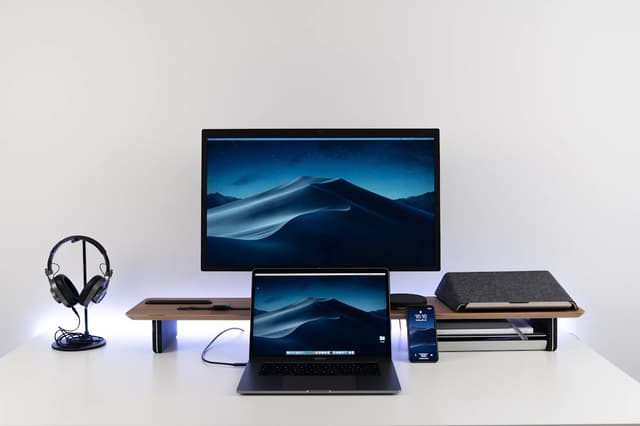


A docking station is a single box that plugs into your laptop with one cable and turns it into a full desktop setup: multiple monitors, wired internet, extra USB ports, and often enough power to charge the laptop too. If you plug and unplug your laptop from a desk setup more than once a day, this is the piece of gear that ends the cable juggling.
What Is a Docking Station, Really
A docking station is a hardware hub that sits on your desk and stays wired to your monitor, keyboard, mouse, ethernet, and charger, so your laptop only ever has to connect to one thing. Think of it like a marina slip for a boat: instead of tying off ropes and hooking up power individually every time you dock, you pull in, connect one line, and everything is live. Undock in the morning to take the laptop to a meeting, come back, plug in the one cable, and your two monitors, keyboard, mouse, and charger are all instantly live again.
That's the entire pitch. Everything else, port counts, wattage, monitor limits, is just detail on how well a given dock delivers that one-cable promise.
How It Works
A dock receives one cable from your laptop, usually USB-C or Thunderbolt, and fans that single connection out into many: video (HDMI or DisplayPort), USB-A and USB-C for peripherals, wired ethernet, and often a charging cable to power the laptop itself. Thunderbolt is a faster, higher-bandwidth version of the USB-C connector that supports more simultaneous video streams; it looks identical to plain USB-C but requires a laptop port that specifically supports it. The dock also usually plugs into a wall outlet on its own, since it's supplying power in addition to relaying data.
The one wrinkle worth understanding before you shop: your laptop's own hardware sets a ceiling on how many independent displays it can drive, no matter how many ports the dock has. A dock advertising "triple 4K" is describing what it's physically capable of outputting, not a guarantee that your specific laptop's graphics can drive three independent screens through it. Check your laptop's own display-output spec (search "[your laptop model] number of external displays supported") before assuming a dock will unlock more monitors than your laptop's graphics allow.
Who Actually Needs One
You need a dock if you dock and undock a laptop at the same desk daily and currently deal with more than two cables to reconnect everything. That's the core use case: hybrid workers, anyone running two or more monitors, and anyone tired of the multi-cable shuffle every time they sit down.
You probably don't need one if you use a single monitor and only occasionally connect it; a basic USB-C hub or even a single HDMI cable handles that with less money spent. You also don't need one if your laptop rarely leaves the desk at all, since a permanent multi-cable setup costs nothing extra to maintain once it's built.
Docking Station vs. USB-C Hub vs. Thunderbolt Dock
These three terms get used loosely, and the difference matters for your wallet. A USB-C hub is a small, usually unpowered adapter that adds a handful of ports; it's fine for a single external monitor and a couple of peripherals but rarely delivers serious laptop charging or more than one extra display. A docking station is a larger, self-powered hub built specifically for a permanent desk setup, with real wattage for charging and support for two or more displays. A Thunderbolt dock is a docking station built around the faster Thunderbolt standard, which raises the ceiling on both data speed and how many independent high-resolution displays it can drive at once, but only on laptops with a genuine Thunderbolt port.
| USB-C Hub | USB-C Dock | Thunderbolt Dock | |
|---|---|---|---|
| Typical use | One monitor, occasional use | Permanent 2-3 monitor desk | Permanent desk, heavy video/data work |
| Laptop charging | Rarely, or low wattage | Often 60-85W | Often 90W+ |
| Displays supported | 1, sometimes mirrored only | 2-3, varies by OS | Dual 6K or more |
| Needs Thunderbolt port | No | No | Yes |
| Price range in this guide | not covered here | $170-250 | $400 |
What to Look For
Before you buy, check these against your own laptop, not just the dock's marketing page:
- Port type on your laptop: confirm whether it has a Thunderbolt port (look for the lightning-bolt icon) or only plain USB-C; this determines whether a Thunderbolt dock's full speed and display output actually apply to you.
- Power delivery (wattage): match the dock's charging wattage to your laptop's charger rating. A 13-15 inch ultrabook typically needs 65-85W; a 16-inch power laptop can want 96W or more. Undershooting this means the dock trickle-charges or doesn't charge at all under load.
- Display count and resolution you actually need: two 1080p monitors and dual 4K are very different bandwidth asks; buy for the monitors you own, not a hypothetical upgrade.
- Mac vs. Windows multi-monitor support: this is the most common surprise return. macOS historically limits plain USB-C docks to Single-Stream Transport, meaning two "extended" external monitors often show up mirrored instead of independent. If you're on a Mac and want two truly separate external displays, you need a dock built around DisplayLink technology specifically, not just any USB-C dock.
- Port mix for your actual peripherals: count what you plug in daily (external drive, SD card, ethernet, wired headset) and match against the dock's port list rather than assuming more is always better.
- Cable length and desk layout: some docks ship with a short, fixed cable, which matters if your laptop sits further from the dock than an arm's reach.
The Best Docking Stations You Can Buy Right Now
Reviews compare current prices, published specs, and buyer feedback to land on these four; each wins a specific use case rather than being a universal "best."
CalDigit TS4 Thunderbolt 4 Dock (18 Ports, 98W Charging)
This is the dock reviewers default to when someone just asks for "the best docking station," and the spec sheet backs up the reputation: 18 total ports, dual 6K or single 8K display output, and 98W of charging, enough to run a 16-inch MacBook Pro at full load with no separate power brick. It fits first-time buyers who already know they need serious bandwidth, whether that's video editing, running multiple 4K+ monitors, or simply owning a Thunderbolt laptop and wanting a dock that will never be the bottleneck. The most common complaint is the roughly $400 price tag, and a secondary one is that it runs noticeably warm under sustained heavy use; the captive Thunderbolt cable is also short at about 0.8 meters, so plan your desk layout around that. Full functionality requires a genuine Thunderbolt 4 port; a plain USB-C-only laptop won't unlock everything here.
Anker 575 USB-C Docking Station (13-in-1)
This is Anker's flagship dock and the one most often recommended as the "just get this" pick for a typical home-office desk, commonly street-pricing well under its roughly $249.99 list price. It supports triple displays (two HDMI plus one DisplayPort) at a mid-range price, delivers 85W of charging that covers most 13-15 inch ultrabooks without a separate charger, and ships with a 135W power adapter so there's nothing extra to buy. It's the strongest fit for a Windows laptop specifically, because on macOS and iPadOS it falls back to Single-Stream Transport, meaning the extra displays mirror rather than extend, a very common complaint from Mac buyers who didn't know this going in. A smaller recurring complaint across reviews is intermittent HDMI flicker after months of daily use.
UGREEN Revodok Pro 209 (9-in-1 DisplayLink Dock)
This is the dock to buy specifically if you're on a MacBook and want two real, independent external monitors rather than a mirrored pair. It uses DisplayLink technology, which sidesteps the Mac multi-monitor limitation the Anker 575 runs into, and it ships with a bundled 100W GaN charger so nothing else needs to be purchased. At around $169.99, it's the budget pick in this lineup, with dual 4K@60Hz output and fast 10Gbps data ports for real external-drive work. The tradeoff is a fussier first setup: DisplayLink requires a manual driver install and occasionally a reboot before both screens are recognized, which shows up repeatedly in buyer feedback, and its 4.1-star average is the lowest here, driven mostly by that driver friction on older macOS versions.
Dell WD19S 180W Docking Station (130W Power Delivery)
If your laptop is a Dell issued by an employer, this is the practical, vendor-matched pick rather than shopping brand-agnostic. It's firmware-matched to Latitude, Precision, and XPS laptops, and owners consistently report it "just works" in a way third-party docks sometimes don't on Dell hardware specifically. It supports Dell ExpressCharge, which fast-charges compatible Dell laptops to around 80% in about an hour, and needs no extra software to set up. At about $179.99 (often discounted further), it undercuts the Anker 575 while adding fast-charge support, but it only has two USB-A ports, a common complaint from anyone plugging in several peripherals at once, and it skips an SD card slot and headphone jack entirely.
| Attribute | CalDigit TS4 Thunderbolt 4 Dock (18 ports) | Anker 575 USB-C Docking Station (13-in-1) | UGREEN Revodok Pro 209 (9-in-1 DisplayLink Dock) | Dell WD19S 180W Docking Station (130W Power Delivery) |
|---|---|---|---|---|
| Rating | 4.1 | 4.1 | 4.1 | 4.3 |
| Price | $379.99approx. · checked Sep 2026 | Not listed | $125.98approx. · checked Oct 2026 | Not listed |
| Host connection | Thunderbolt 4 (USB-C), 40Gb/s, works with M4 TB4/TB5 ports | Not listed | Not listed | Single USB-C cable |
| Ports | 18: 3x TB4, 3x USB-C 10Gb/s, 5x USB-A 10Gb/s, 2.5GbE LAN, SD + microSD, audio | 13 (2x HDMI 2.0, 1x DisplayPort, 2x USB-C, 3x USB-A, Ethernet, SD + microSD, 3.5mm, DC-in) | Not listed | Not listed |
| Power delivery | 98W to host | Not listed | 100W USB-C pass-through | 130W USB-C (180W power brick) |
| Max video output | Single 8K@30Hz or dual 6K@60Hz (M4 Pro/Max) | Not listed | Not listed | Not listed |
| Included cable | 0.8m certified Thunderbolt 4 cable | Not listed | Not listed | Not listed |
| Laptop charging | Not listed | 85W USB-C Power Delivery (135W wall adapter included) | Not listed | Not listed |
| Max dual-display output | Not listed | 2x 4K@30Hz or lower-res at 60Hz (Windows MST) | Not listed | Not listed |
| Data | Not listed | 10 Gbps USB-C, 5 Gbps USB-A | Not listed | Not listed |
| Networking | Not listed | Gigabit Ethernet | Not listed | Not listed |
| Total ports | Not listed | Not listed | 9 | Not listed |
| Displays | Not listed | Not listed | 2x DisplayPort + 2x HDMI, dual 4K@60Hz via DisplayLink | 2x DisplayPort + 1x HDMI 2.0, dual 4K@60Hz or triple QHD@60Hz |
| Data ports | Not listed | Not listed | USB-C and USB-A at 10Gb/s | Not listed |
| Ethernet | Not listed | Not listed | Gigabit | Gigabit |
| Included accessory | Not listed | Not listed | 100W GaN charger | Not listed |
| Build | Not listed | Not listed | Aluminum housing | Not listed |
| USB-A ports | Not listed | Not listed | Not listed | 2x USB-A 3.1 Gen 1 |
| Fast charging | Not listed | Not listed | Not listed | Dell ExpressCharge (compatible Dell laptops) |
| Buy | View on Amazon | View on Amazon | View on Amazon | View on Amazon |
✓ Pros
- ✓ CalDigit TS4: never runs out of ports or bandwidth for power users
- ✓ Anker 575: best all-around value for a Windows triple-monitor desk
- ✓ UGREEN Revodok Pro 209: the only budget pick that solves real Mac dual-monitor support
- ✓ Dell WD19S: fast-charges compatible Dell laptops with zero setup friction
✕ Cons
- ✕ CalDigit TS4: roughly $400, runs warm, short captive cable
- ✕ Anker 575: mirrors rather than extends displays on macOS
- ✕ UGREEN Revodok Pro 209: manual driver install required on first use
- ✕ Dell WD19S: only 2 USB-A ports, no SD slot, best results tied to Dell hardware
How to Set Up a Docking Station on Your Desk
- Plug the dock's power adapter into the wall first, then connect your monitors, keyboard, mouse, and ethernet cable into the dock itself, not the laptop.
- Connect the single USB-C or Thunderbolt cable from the dock to your laptop.
- If prompted, install any required driver (this applies to DisplayLink-based docks like the UGREEN Revodok Pro 209); Windows and macOS should recognize a plain USB-C or Thunderbolt dock without extra software.
- Open your display settings and set monitors to "extend" rather than "duplicate" if they aren't arranged correctly by default.
- Confirm the laptop is charging through the dock (check your battery icon) before disconnecting any other charger.
Bottom Line
For most people replacing a tangle of cables with one, the Anker 575 is the sensible default on Windows. Thunderbolt owners and anyone who edits video or runs demanding multi-monitor setups should skip straight to the CalDigit TS4. Mac users who specifically want two independent extended monitors should look at the UGREEN Revodok Pro 209 instead of a plain USB-C dock, and anyone on employer-issued Dell hardware will have the smoothest experience with the Dell WD19S. Whichever you pick, check your laptop's port type, charging wattage, and display-output limit first; that's what actually determines how much of the dock's spec sheet you get to use.