


If you've ever started copying a big folder to an external hard drive and watched the transfer crawl to a stop somewhere around hour three, you've met shingled magnetic recording. It's not a bad cable, a dying drive, or a full USB bus. It's how the platters inside the drive are laid out, and it's the single biggest reason external hard drives that benchmark fine in a five-minute test turn into a multi-day ordeal on a real backup.
What Shingled Recording Actually Is
Think of a normal roof: each shingle sits in its own row with a clean gap to the next one. That's CMR, conventional magnetic recording. Every data track on the platter has its own lane, so the drive can write to any track without disturbing its neighbors.
SMR overlaps the shingles, laying each new track partly on top of the one before it, like actual roof shingles. That packs more capacity onto the same platters, which is why SMR became the cheap way for manufacturers to hit higher terabyte counts without redesigning the drive. The catch: writing to an already-shingled track means rewriting the tracks overlapping it too. The drive can't just update one spot; it has to shuffle a whole neighborhood of data.
Why That Makes Big Copies Crawl
The slowdown isn't random, it's a cache running out. SMR drives hide that shuffling behind a small conventional (non-shingled) cache area that absorbs incoming writes at full speed. For the first several gigabytes, an SMR drive can look just as fast as a CMR one. Then the cache fills, and every new write has to wait for the drive to reshuffle shingled tracks in the background before it can proceed.
That's the mechanism behind the drive that starts a copy at 150 MB/s and is limping along at 20 to 30 MB/s an hour later, or behind the five-day copy job you'll find described in our external hard drive buying guide in the section on portable Seagate drives. It isn't a defective unit. It's a drive-managed SMR mechanism doing exactly what it's designed to do under sustained load, just not the load a photo or video backup actually generates.
Small, incremental writes (documents, a handful of photos at a time) rarely trip the cliff. Large sequential copies, and especially anything that rewrites existing files rather than only adding new ones, trip it reliably.
How to Tell SMR from CMR Before You Buy
There's no single universal spec field for this, so it takes a short checklist rather than one lookup:
- Check the cache size on the spec sheet. It's a real heuristic, not a perfect one: rock-bottom cache (8 to 16MB) is common on cheap SMR drives, while the CMR NAS drives we recommend below carry 64MB and 256MB respectively. A tiny cache alone isn't proof, but it's a flag.
- Search the exact model number plus "CMR" or "SMR." Not the marketing name, the actual model number printed on the drive or listed deep in the spec sheet. Manufacturers have changed the mechanics inside a product line without renaming it, so the family name alone (Elements, Expansion, Canvio) tells you less than the specific SKU does.
- Cross-reference the manufacturer's own recording-technology list, where one exists. Seagate, WD, and Toshiba each publish pages listing which internal drive models are CMR. The problem: those lists are written for internal (bare) drives, not the boxed external drives on a store shelf, so you often can't match a portable drive's box to a line on that list without opening it.
- Default to a drive that says so on the box. When a listing or the box itself says "CMR" or "All-CMR" outright, as newer NAS drives increasingly do specifically because of the SMR backlash, that's the most reliable signal you'll get without teardown reports.
Which WD, Seagate, and Toshiba Lines Lean Which Way
As a general pattern across current portable and desktop external lines:
| Brand | Product line type | Typical recording tech | Why |
|---|---|---|---|
| Western Digital | 2.5-inch portable (bus-powered) | Mostly SMR | Cheapest way to hit higher capacities in a small enclosure |
| Western Digital | 3.5-inch desktop (mains-powered) | Mostly CMR | Uses larger desktop-class mechanicals, less pressure to shingle |
| Seagate | 2.5-inch portable (bus-powered) | Mostly SMR | Same capacity-per-dollar pressure as WD's portable line |
| Seagate | 3.5-inch desktop (mains-powered) | Mixed, check the model | Desktop drives skew CMR but verify per SKU |
| Toshiba | 2.5-inch portable (bus-powered) | Mostly SMR | Same industry-wide pattern |
The pattern that matters more than any brand name: bus-powered 2.5-inch portables lean SMR, mains-powered 3.5-inch desktop externals lean CMR. That's not a coincidence. Desktop enclosures have room for the larger, faster mechanicals that don't need shingling to hit their capacity, which is exactly why a drive like the My Book 8TB sidesteps this problem by using desktop-class drive mechanics instead of the SMR-leaning 2.5-inch drives found in most portables.
Is SMR Bad for NAS or RAID Arrays?
Yes, and this is the case where it actually matters most. A RAID array rebuild after a failed drive is a sustained, hours-long write to every remaining drive at once, precisely the workload that triggers the SMR cliff hardest. Rebuilds that should take a few hours have stretched into multiple days on SMR drives, and a second drive failing during that extended window is how arrays lose data outright.
For a first NAS build, IronWolf 4TB (ST4000VNZ06/006) is marketed as "All-CMR" directly on the box and in the listing title, specifically because earlier IronWolf capacities shipped as SMR and burned buyers during rebuilds. It runs about $95, includes a 3-year Rescue data recovery service on top of the standard warranty, and its most common complaint is that it runs warm and can be audible in a multi-bay enclosure, worth knowing if the NAS sits somewhere quiet.
Is SMR Fine for Time Machine or Regular Backups?
Occasional, cold backups are fine. Continuous or incremental backup roles are where it struggles. A monthly manual copy of a folder gives the drive's cache time to fully drain between sessions, so you rarely feel the cliff. Time Machine and other continuous backup tools instead write in frequent small bursts and periodically consolidate old snapshots, which behaves more like the sustained-write pattern that trips SMR, especially as the drive fills.
The practical rule of thumb: the less full the drive and the more spaced out your backup sessions, the less you'll notice. The moment you're doing a full initial backup of a large drive, or running continuous incremental backups on a nearly-full disk, SMR is working against you.
Already Own a Possibly-SMR Drive? Here's How to Live With It
You don't have to return it immediately. A few habits blunt the worst of it:
- Keep it under roughly 50 to 80% full. SMR's shuffling gets worse as free contiguous space shrinks, so a fuller drive means a harder cliff.
- Avoid RAID and NAS duty entirely. Use it as a single-drive backup target, not a rebuild-prone array member.
- Break large transfers into smaller batches with pauses between them, giving the internal cache time to drain instead of running it dry in one continuous copy.
- Don't repeatedly overwrite the same files. Rewriting existing data forces more of the shingled-track shuffling than writing to fresh space does.
- Know when to stop managing around it. If a single backup job routinely takes multiple days, or the drive is timing out or dropping off during transfers, that's the cutoff. Replace it rather than keep working around a symptom that's only going to get worse as the drive fills further.
If You'd Rather Skip the Problem Entirely
The cleanest fix is choosing hardware where this cliff doesn't exist in the first place. For NAS builds, that means CMR-labeled internal drives. For a desktop backup drive, that means a mains-powered desktop external instead of a bus-powered portable. And if you don't need spinning-platter capacity at all, portable SSDs skip the SMR question entirely since flash storage doesn't use shingled tracks.
Red Plus 4TB (WD40EFPX) is Western Digital's answer to its own 2020 SMR controversy on the standard Red line: CMR is confirmed on the spec sheet, it carries a 256MB cache (versus the IronWolf's 64MB), and owners consistently describe it as one of the quieter NAS drives at idle. It typically runs about $95 on sale against a roughly $120 list. Its recurring complaint is a small number of units developing a clicking noise or dropping off the bus within months, which is worth an RMA rather than a wait-and-see.
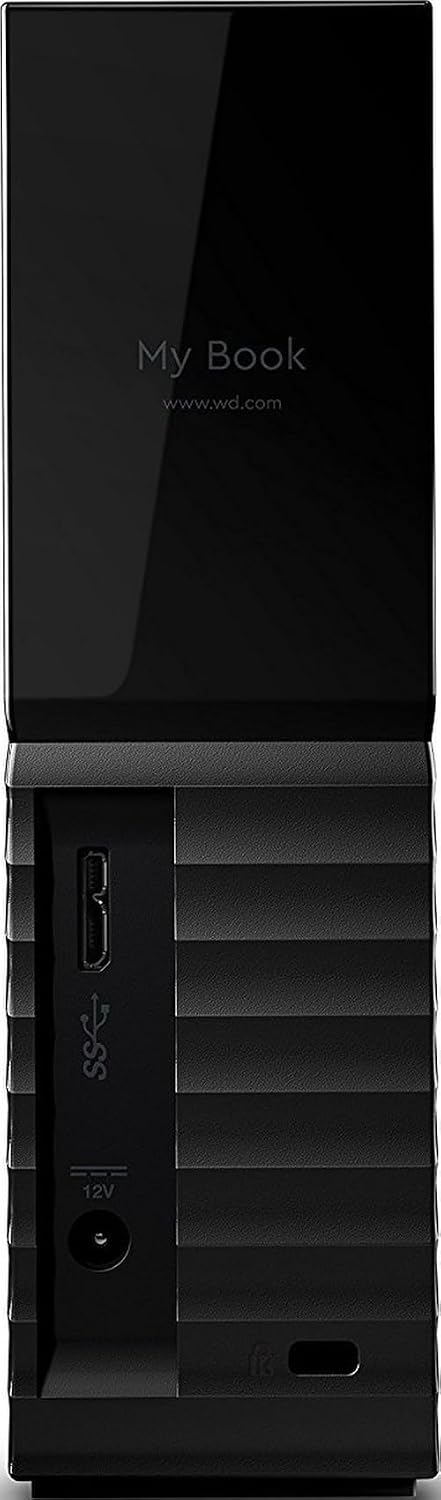
If you don't want to build a NAS at all, the My Book 8TB (WDBBGB0080HBK-NESN) is the direct fix for the five-day-copy scenario: it's a mains-powered desktop enclosure built around desktop-class drive mechanics rather than the SMR-leaning 2.5-inch drives in most portables. It typically runs $150 to $190 depending on sales, includes hardware AES encryption, and its most common owner complaint is that the enclosure runs warm and can be audible on long transfers, which matters if it's sitting on a desk rather than tucked away.
| Attribute | Seagate IronWolf 4TB NAS Internal Hard Drive (ST4000VN006) | Red Plus 4TB NAS Internal Hard Drive (WD40EFPX) | WD My Book 8TB Desktop External Hard Drive |
|---|---|---|---|
| Rating | 4.5 | 4.5 | 4.4 |
| Price | Not listed | $94.99approx. · checked Aug 2026 | $349.99approx. · checked Aug 2026 |
| Capacity | 4 TB | 4TB | 8TB |
| Rotational speed | 5400 RPM | Not listed | Not listed |
| Cache | 256 MB (Seagate spec sheet; some Amazon listings show 64 MB) | 256MB | Not listed |
| Recording technology | CMR | CMR (Conventional Magnetic Recording) | Not listed |
| Interface | SATA 6 Gb/s | SATA 6Gb/s | USB 3.0 (5Gbps), USB 2.0 compatible |
| Workload rating | 180 TB/yr | Not listed | Not listed |
| Warranty | 3 years + 3 years Rescue data recovery | 3-year limited | 2-year limited |
| Form factor | 3.5 inch | Not listed | 3.5" desktop (external AC power required) |
| MTBF | 1,000,000 hours | Not listed | Not listed |
| Spindle speed | Not listed | 5400 RPM class | Not listed |
| Rated workload | Not listed | 180TB/year | Not listed |
| Weight | Not listed | ~620g (1.37 lb) | Not listed |
| Security | Not listed | Not listed | 256-bit AES hardware encryption, password protection |
| Software | Not listed | Not listed | WD Backup / WD Discovery included |
| Buy | View on Amazon | View on Amazon | View on Amazon |
Bottom Line
SMR isn't a scam and it isn't automatically wrong for you, but it's a mechanical tradeoff that manufacturers rarely spell out on the box, and it bites hardest exactly when you need a drive most: a big one-time backup, a NAS rebuild, or a full Time Machine run. Check the exact model number before buying, not just the product line name. For a NAS, go CMR-labeled every time, like the IronWolf 4TB or Red Plus 4TB. For a desktop backup drive that sidesteps the whole issue, the My Book 8TB uses desktop mechanics instead of the SMR-prone portable class. And if you already own a drive you suspect is SMR, keep it under about 80% full, keep it out of RAID duty, and treat a multi-day copy job as your signal to move on rather than something to keep troubleshooting.


