


If you just spent $600 or more building out a RAID array on a new NAS, you've solved exactly one problem: what happens when a single drive dies. RAID does not protect you from fire, flood, theft, a ransomware payload that encrypts every share it can reach, or your own fat-fingered delete. The 3-2-1 backup rule is the actual plan for those cases: keep 3 copies of anything you can't lose, on 2 different types of media, with 1 copy stored somewhere physically separate from the NAS. Here's how to build that out with gear you can buy this weekend, what it costs per year, and how to prove it actually works before you need it.
Why RAID Doesn't Count as Your Backup
RAID exists to keep the array online through a drive failure, not to protect the data on it. Every RAID level (1, 5, 6, 10) rebuilds a failed disk from parity or a mirror, which is genuinely useful and genuinely not a backup. If your NAS is stolen, catches fire, or gets hit by a firmware bug or crypto-ransomware that encrypts every mapped share, RAID rebuilds the exact same corrupted or missing data across every remaining disk. It also does nothing for accidental deletion: you delete a folder, RAID faithfully keeps zero copies of it, same as it would with a single drive. The array is one copy, on one media type, in one location. That's the opposite of 3-2-1.
The 3-2-1 Rule, Applied to a NAS You Already Own
3 copies, 2 media types, 1 offsite, and your NAS's RAID array only ever counts as one of the three. Here's the plain-language breakdown for a home or small-office setup:
- Copy 1: the live data on the NAS itself (the RAID array). This is your working copy, not a backup.
- Copy 2: a full backup on different hardware, ideally different media, sitting on-site (a desktop external drive plugged into the NAS or a second NAS).
- Copy 3: a copy that lives somewhere physically separate, cloud storage or a drive that leaves the building.
The question readers actually get stuck on is what counts as the "different media type" once copy 1 is already spinning disks in a NAS. In practice this isn't about magnetic tape versus hard drives anymore; it's about failure domain. An external HDD plugged into the same NAS is a different physical device, but it shares your house, your power surge, and your ransomware blast radius. Cloud storage is the cleanest way to satisfy both the "different media" and "offsite" legs at once, because it's a separate facility, separate hardware, and (with the right app) a separate, versioned target that malware on your LAN can't silently overwrite.
Step 1: Build the Second Copy on a Local, Separate Drive
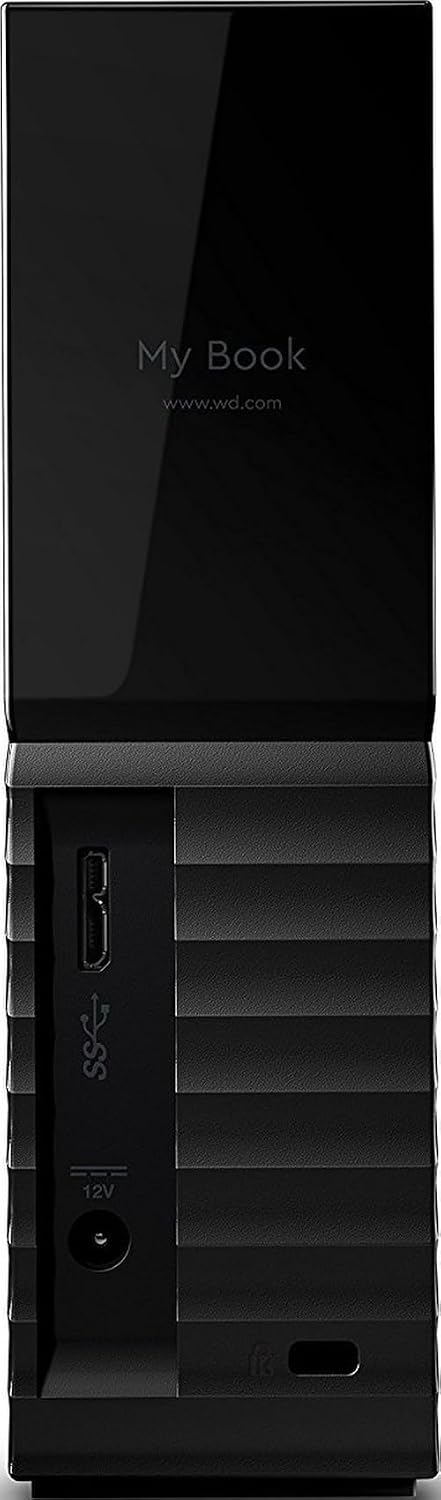
Mirror the array to a dedicated external drive before you touch the cloud leg; it's the fastest, cheapest full backup you can make. For a typical 2 to 4 bay home NAS, an 8TB desktop drive covers a full mirror in one shot. If you want backup software that schedules itself, WD My Book 8TB bundles WD Backup so the copy doesn't quietly go stale, plus 256-bit hardware encryption if the drive ever leaves the house later. If your NAS already runs its own backup app (Synology Hyper Backup, TrueNAS replication, an rsync job), skip the bundled software and buy WD Elements Desktop 8TB instead, the same 8TB of storage for roughly $150 less because you're not paying for software you won't use.
Treat any single external drive as disposable, not eternal. Both of these drives carry a real minority of one-year failure reports in buyer reviews, click-of-death or SMART failures on My Book, loud clunking or early death on Elements. That's not a reason to skip this step, it's the entire reason 3-2-1 asks for three copies instead of two: no single drive, however good, is the plan by itself.
Step 2: Pick the Offsite Leg (Cloud or a Drive That Leaves the House)
The offsite copy is the one people skip, and it's the one that actually saves you when the house is the problem. You have two legitimate paths: pay for cloud storage, or physically rotate a drive out of the building. Neither is free in money or effort, so pick the one you'll actually keep up.
Rough monthly storage cost for a typical 4 to 8TB NAS backup, checked against current published rates:
| Service | Storage cost (per TB/month) | Egress on a real restore | Notes |
|---|---|---|---|
| Backblaze B2 | ~$6 | Often free up to roughly 3x stored data via partner networks, otherwise metered | Cheapest full-speed restore path of the paid options |
| Wasabi | ~$7 flat | Free up to your monthly storage volume, then metered | 90-day minimum retention charge if you delete early |
| AWS S3 Glacier Deep Archive | ~$1 | Expensive and slow, retrieval can run $20-30+/TB and take hours | Cheapest to store, most expensive and slowest to actually restore |
| Synology C2 Storage | ~$6-7 (sold as annual tiers, not pure pay-per-GB) | Included in most plans | Only integrates cleanly with Synology's own Hyper Backup |
For an 8TB backup, that's roughly $48-56 a month in storage on Backblaze B2 or Wasabi (about $576-672 a year), before you ever restore anything. Glacier looks cheapest on paper but the retrieval bill on an actual disaster-recovery restore can exceed a year of B2 storage in a single event, which defeats the point. Always check current published pricing before committing; cloud storage tiers change.
If you'd rather not pay a subscription, the no-cost path is a portable drive you physically carry off-site on a schedule. WD Elements Portable 4TB is bus-powered off one USB cable, no brick to pack, and it's the most-reviewed drive in this category on Amazon at a 4.6-star average across 40,000+ ratings. If the drive is actually going to ride in a bag, car, or storage unit regularly rather than sit untouched, LaCie Rugged USB-C 4TB adds real drop (4ft), crush (1 ton), and rain resistance plus a 3-year warranty for about $26 more.
✓ Pros
- ✓ Cloud storage never depends on you remembering to physically move a drive
- ✓ A rotated drive costs nothing monthly after the one-time purchase
- ✓ Cloud gives you offsite protection the same day you set it up; a drive rotation only protects you between trips
✕ Cons
- ✕ Cloud storage is a recurring bill that keeps growing as your NAS fills up
- ✕ A rotated drive is only as offsite as your last trip, if it's sitting in your car in the driveway, it isn't offsite
- ✕ Restoring a full 8TB backup from cloud can take days on a home internet connection; a local drive restores at USB speed
Step 3: Match the NAS App to the Job, Not Just the Icon
Sync is not backup, and this is the single most common way a 3-2-1 setup fails silently. Cloud Sync, Drive Sync, and similar tools mirror changes in both directions, which means ransomware that encrypts files on the NAS gets faithfully synced to the cloud copy too, often before you notice anything is wrong. What actually satisfies the rule against ransomware is a tool that keeps versioned, immutable snapshots instead of a live mirror:
- Synology: use Hyper Backup for the versioned offsite/cloud leg (it keeps historical versions you can roll back to), and Snapshot Replication with immutable snapshots locked against modification for the fast local-recovery leg. Reserve Cloud Sync for files you want live-synced across devices, not for anything you're counting as a backup.
- QNAP: Hybrid Backup Sync (HBS) is the versioned backup tool; QSync is the live-sync tool, same distinction as above.
- Anything else (TrueNAS, unRAID, a bare Linux box): rclone or restic pointed at your cloud target, run on a schedule with versioning and encryption enabled, does the same job without vendor lock-in.
Step 4: Set a Rotation Schedule You'll Actually Keep
Weekly beats monthly, and monthly beats never; pick a cadence tied to a habit you already have, not an ideal you won't follow. A drive that never leaves the house isn't an offsite copy no matter how good the drive is.
- Rotate a physical offsite drive every 1 to 2 weeks if you can tie it to an existing trip (commute, gym, a relative's house).
- Monthly is the realistic floor; anything less frequent means a disaster in week three costs you a month of changes.
- Cloud backups should run on an automatic schedule (nightly or weekly incremental) so rotation cadence stops being a manual decision at all.
- Keep at least one older version or snapshot on hand rather than overwriting the only offsite copy every rotation, so a ransomware event that goes unnoticed for a few days doesn't wipe out your only clean copy too.
Step 5: Test the Restore Before You Need It
A backup you haven't restored is a theory, not a backup. Twice a year, pick a folder you'd actually miss and restore it from each leg, the local mirror and the offsite copy, to a scratch location, not back over the original. Confirm file counts and open a few files at random rather than trusting a green checkmark. For the cloud leg specifically, time how long a meaningful restore actually takes on your real upload/download speed; that number is what tells you whether Glacier's cheap storage is worth its slow, expensive retrieval for your situation, or whether B2 or Wasabi's higher storage cost buys you a restore you can live with.
Bottom Line
RAID buys you uptime, not safety, and 3-2-1 is the difference between "the array is still running" and "I can actually get my data back." Build the local second copy first: WD My Book 8TB if you want the scheduling software included, WD Elements Desktop 8TB if your NAS already handles that job. Then close the offsite gap with either a cloud target running $6-7 per TB per month, or a drive you'll actually carry, WD Elements Portable 4TB for grab-and-go, LaCie Rugged USB-C 4TB if it's riding in a bag regularly. Set a rotation you'll keep, use a versioned backup app instead of a live sync tool, and test a restore twice a year. That's the whole plan, and it costs a lot less than re-buying the drives you just bought RAID with.
| Attribute | WD My Book 8TB Desktop External Hard Drive | WD Elements Desktop 8TB External Hard Drive | WD Elements Portable 4TB External Hard Drive | LaCie Rugged USB-C 4TB External Hard Drive |
|---|---|---|---|---|
| Rating | 4.4 | 4.6 | 4.6 | 4.5 |
| Price | $349.99approx. · checked Aug 2026 | $199.99approx. · checked Aug 2026 | $184approx. · checked Aug 2026 | $209.99approx. · checked Aug 2026 |
| Capacity | 8TB | 8TB | 4TB | 4TB |
| Interface | USB 3.0 (5Gbps), USB 2.0 compatible | USB 3.0 (micro-B) | USB 3.0 / USB 3.2 Gen 1, bus-powered | USB-C (USB 3.1 Gen 1); USB-C and USB-A cables included |
| Form factor | 3.5" desktop (external AC power required) | 3.5" desktop (external AC power required) | 2.5" portable | 2.5" portable, rugged rubber bumper |
| Security | 256-bit AES hardware encryption, password protection | Not listed | Not listed | Not listed |
| Software | WD Backup / WD Discovery included | None bundled (plug-and-play only) | Not listed | Not listed |
| Warranty | 2-year limited | 2-year limited | 2-year limited | 3-year limited |
| Weight | Not listed | approx. 0.95 kg (2.1 lb) | 8.32 oz (236 g) | 8.8 oz (250 g) |
| Dimensions | Not listed | Not listed | 4.35" x 3.23" x 0.83" | 3.5" x 2.3" x 0.87" |
| Drop/crush resistance | Not listed | Not listed | Not listed | 4ft (1.2m) drop, 1 ton crush, rain/dust resistant |
| Buy | View on Amazon | View on Amazon | View on Amazon | View on Amazon |


